Starting an Analysis
In JADBio, in order to start analyzing data, you have to create projects and add data in them.
Once you have created a project and you added your data in it either by uploading a new dataset, or by attaching an existing dataset from another project, you can now analyze your data (perform an analysis).
There are two ways to perform an analysis:
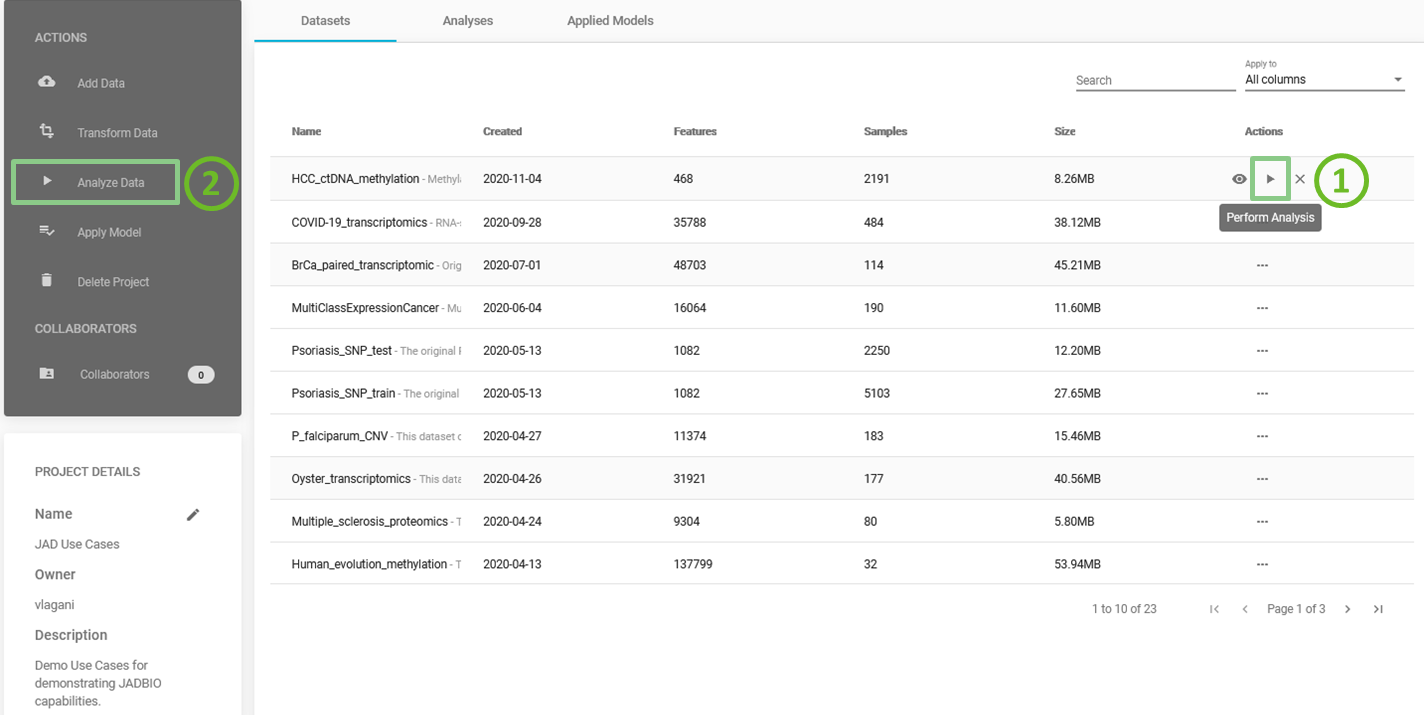
- by clicking on 'Perform Analysis' button of a dataset, or
- through 'Analyze Data' under ACTIONS sidebar.
Analyses tab
- Under ACTIONS sidebar, Click on 'Analyze Data' to perform an analysis.
Select dataset
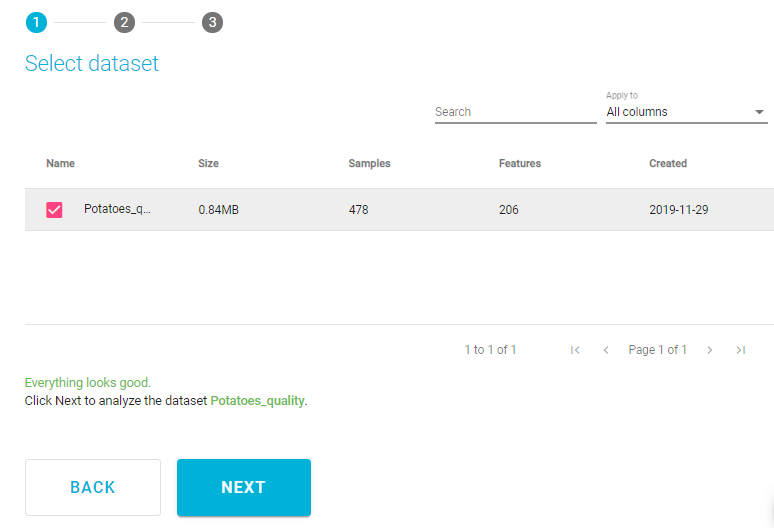
- Select dataset: Choose the dataset you want to analyze and click 'NEXT'.
Select dataset
Previewing my uploaded dataset
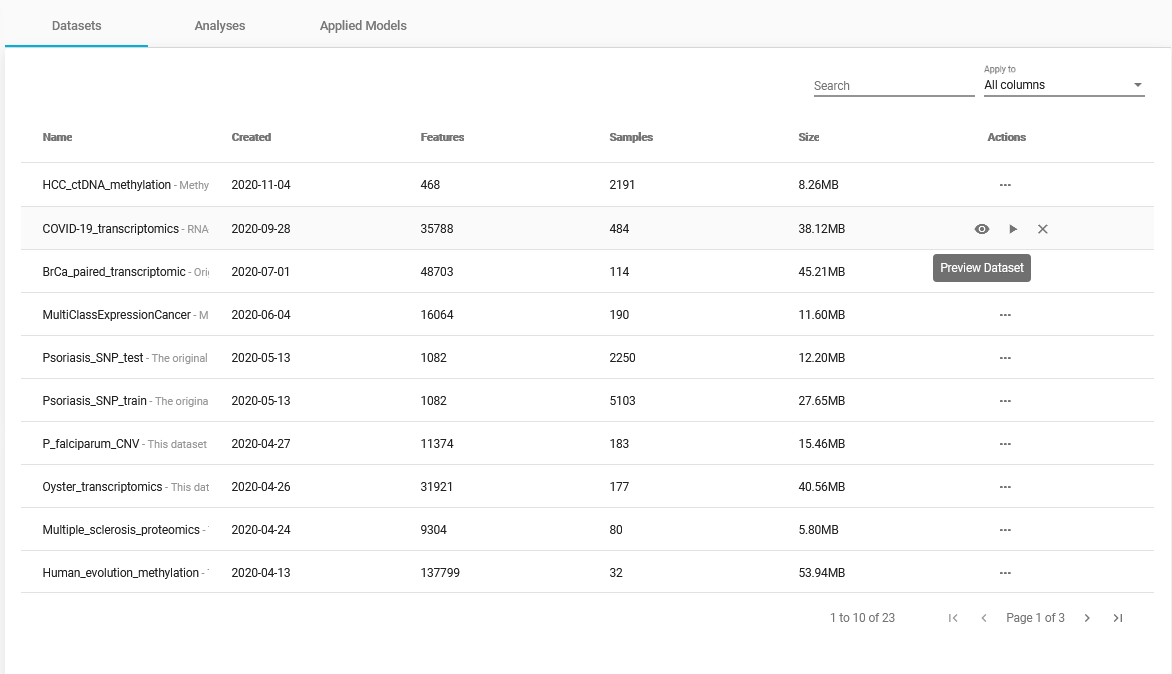
- Click on the Datasets tab to view the datasets of a project. (For demonstration purposes, we use screenshots of JAD Use cases project.
Datasets - JADBio's Use cases project
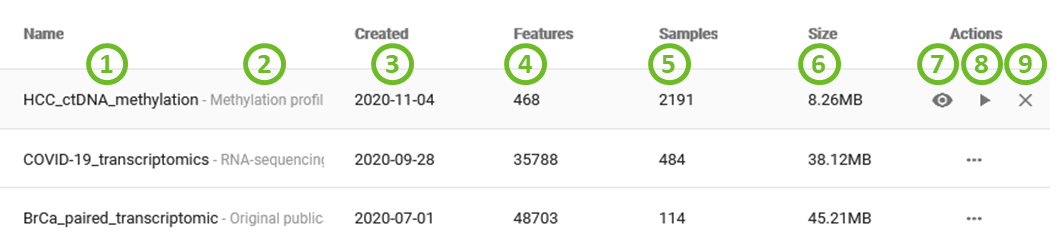
Datasets includes a list of all of your datasets in a project in a tabular format including:
- the name of each dataset
- a short description of each dataset, if one was created
- the date of dataset creation
- the number of features the dataset contains
- the sample size
- the size of each dataset
- 'Preview Dataset' button
- 'Perform Analysis' button
- 'Detach Dataset' button that allows you to remove the dataset from your project
Datasets list
- Click on 'Preview Dataset' button of COVID-19 transcriptomics dataset.
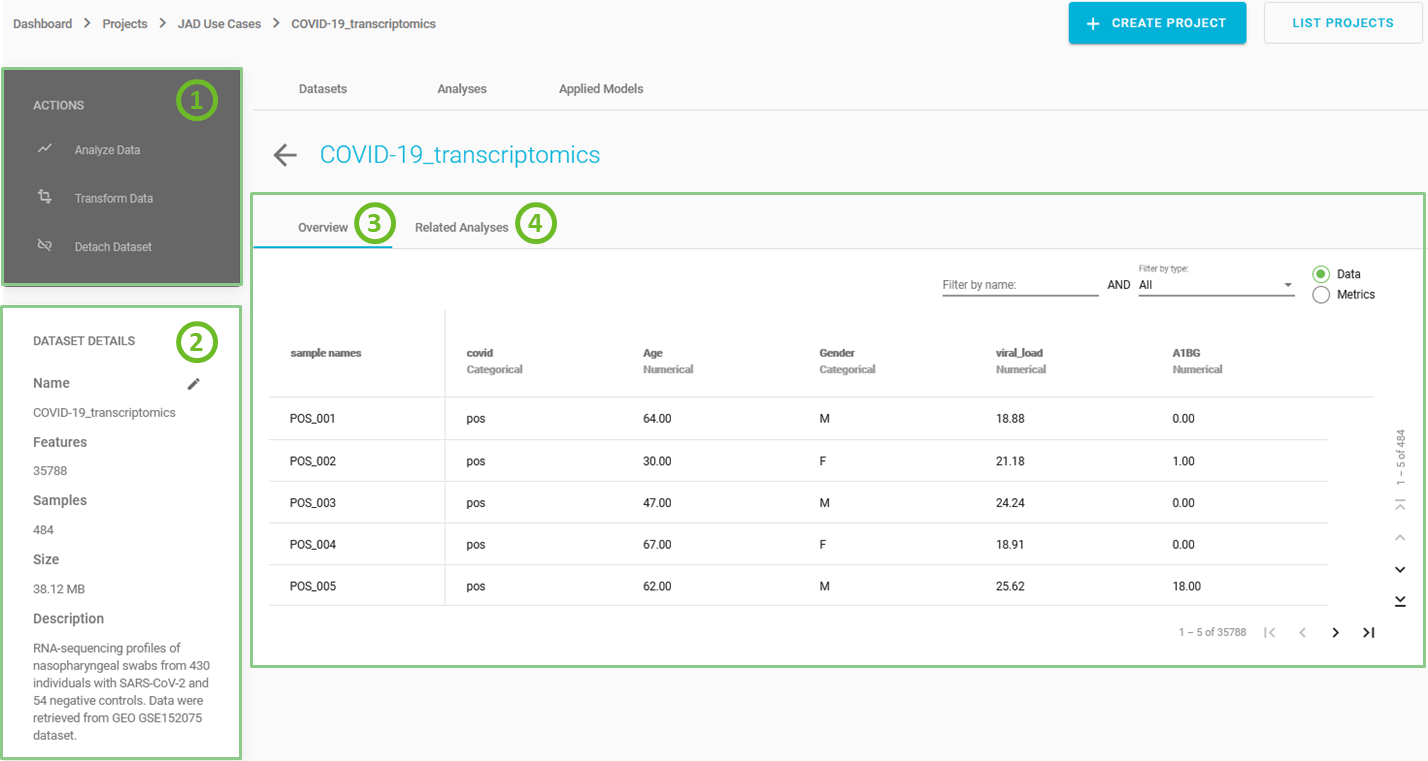
COVID-19 transcriptomics dataset
Preview dataset provides several layers of information:
- ACTIONS menu, that allows you to perform a variety of functions with your dataset.
- DATASET DETAILS
- Overview tab, that displays the dataset’s column and row labels for the first five samples and the first five features with their assigned data types. Tools to navigate or Filter, by name or by type, are embedded.
- Related analyses tab, that displays the previous run analyses of the dataset.
Analysis setup
Under ACTIONS, click on 'Analyse Data'.
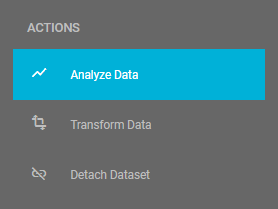
Analyze Data
Selecting the outcome depending on the task
- Select outcome: Check the box next to the name of the feature you want to predict (to find a model for predicting the selected outcome) and click 'NEXT'.
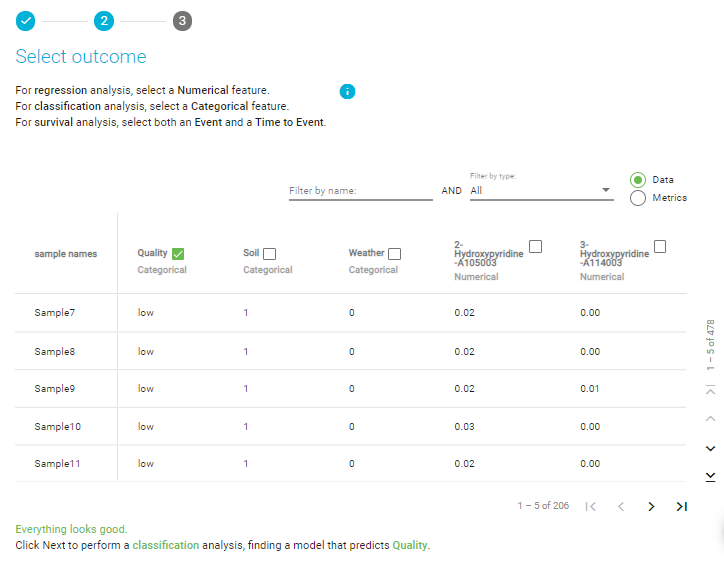
Select outcome
Note
According to the type of your selected feature (numerical, categorical or both Event
and Time to Event), JADBio will perform a regression, a classification or a survival
analysis.
Considering that you have chosen an outcome in which the values are distributed into two or more classes, a categorical feature, JADBio will create a model based on a binary or multiclass classification analysis.
Notifications and warnings before continuing (sample size, class distribution, etc)
Caution
If a dataset has a sample size lower than 10 samples, the analysis will not proceed.
Caution
For binary and multiclass classification analyses, if one class or more have less than 3 samples, the analysis will not proceed.
Caution
Due to current memory limitations, analysis will not proceed if sample size is greater than 200,000 samples and/or number of features is greater than 1,000,000 features.
Warning
For binary and multiclass classification analyses, a warning will be issued if one class or more have less than 15 samples, due to results' unreliability.
Default analysis options
JADBio offers multiple analysis options.
Basic analysis options include:
-
Configure model search.
- Include only relevant features. This option ensures that the models will only include the most relevant features, by enforcing usage of Feature Selection algorithms. This means that models using all the features contained in the dataset, will not be considered.
- Consider only interpretable models. This option ensures that only models that are easy to interpret such as Decision trees and linear regression models will be trained.
-
Configure model tuning effort and resource usage.
-
Model tuning effort. This affects the number of algorithmic combinations (configurations) to be trained. More tuning effort will possibly find better models but also takes more time.
- Preliminary, for a quick first assessment.
- Typical, for an intermediate assessment.
- Extensive, for an advanced assessment
-
Number of CPU cores. More CPU cores will speed up individual analyses, but you will not be able to run as many in parallel.
-
-
Name the analysis. JADBio will automatically create a descriptive name for your analysis based on your selections, which you can change.
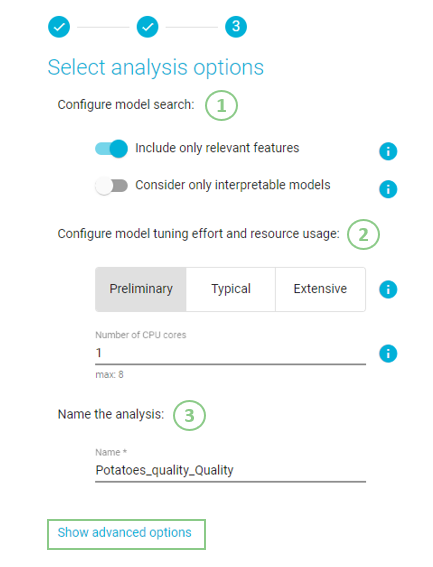
Select analysis options
- Click on 'Show advanced options'.
Advanced options
Advanced analysis options include:
-
Select a feature that defines how samples are grouped. An identifier feature describes how samples (e.g., repeated measurements from the same patient) are grouped and ensures that these samples will not split during analysis.
-
Select metric to optimize. A classification analysis can optimize the performance based on either the AUC (area under the ROC curve), or the accuracy, or the balanced accuracy, or the F1 score, or the Matthews correlation, or the Average precision. AUC is the default option.
-
Configure analysis results
- Maximum signature size. This option defines the number of features the signature will include at most.
- Maximum number of signatures to visualize. This option defines the number of signatures will be visualized in analysis results.
- Plots. This option defines which plot will be created for an analysis. For a classification analysis, JADBio by default bill create four plots, PCA, UMAP, ICE, and Probabilities.
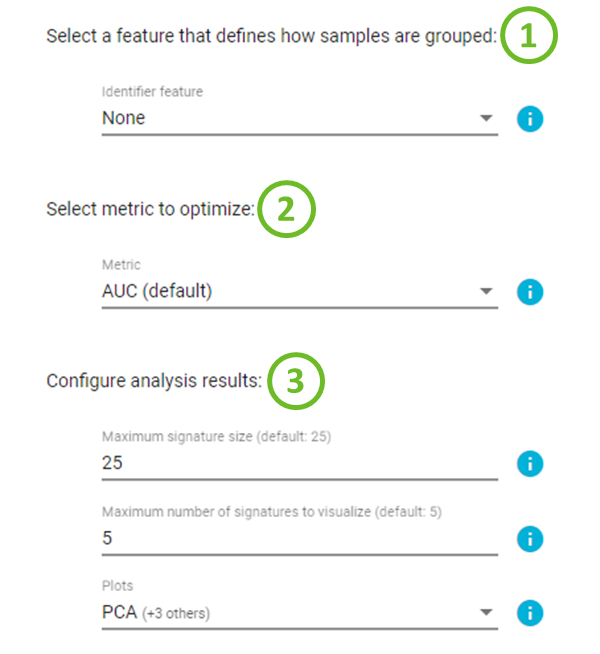
Advanced analysis options
Note of appreciation to JADBio users
We constantly make changes in the software and do our best to update these materials, but you may notice some differences. We welcome your feedback on how to make this more useful for you and requests for future tutorials.