JADBio's main screen
JADBio is straightforward to use in just a few steps:
- Upload your data.
- Transform your data (optional).
- Analyze your data.
- View your best model results.
- Share your results (optional).
- Validate your model (optional).
JADBio's main screen consists of four sections: the
Header, the MENU sidebar, the Dashboard and
the Support/Feedback.
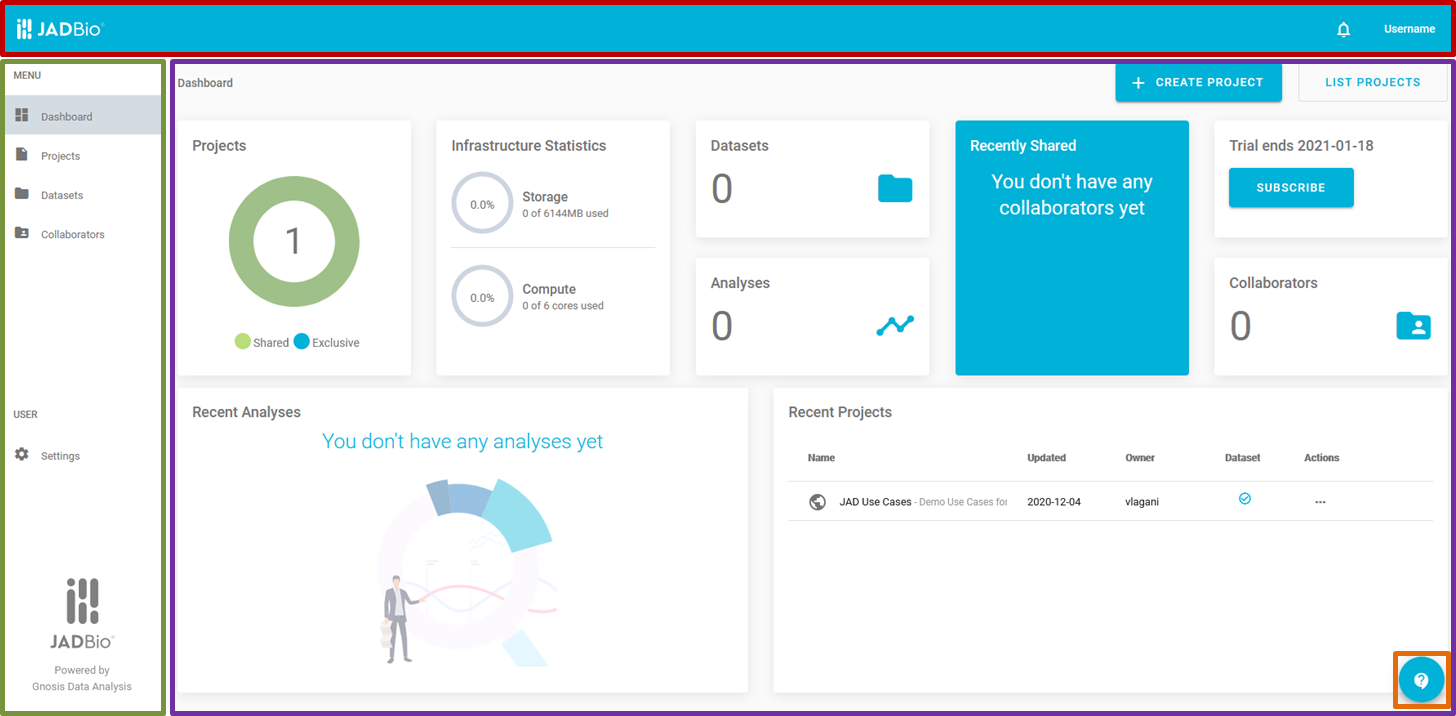
JADBio's main screen
Header
The Header includes the:
- Notifications list ().
- Logout function under your username.

JADBio's header
MENU
The MENU sidebar provides navigation to:
- Dashboard. Select here whenever you want to return to the main screen.
- Projects, that provides a list of all of your projects.
- Datasets, that provides a list of all of your uploaded datasets.
- Collaborators, that provides a list of all of your collaborators, other subscribers with whom you have shared projects.
- Settings, that gives you access to your profiler details.
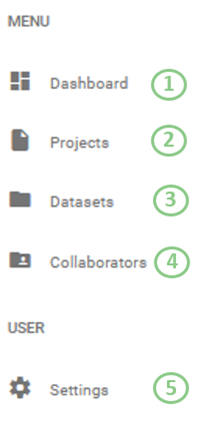
JADBio's MENU sidebar
Dashboard
The Dashboard provides an overview of your usage, including:
- Projects: A graphic representation of shared and exclusive projects.
- Infrastructure & statistics: A summary of your current Storage and Compute. Standard subscriptions include 2 or 6 cores.
- Datasets: The total number of your Datasets.
- Analyses: The total number of your Analyses.
- Recently shared: A list of your current Collaborators. When you share a project with another subscriber, they become a collaborator and your project is defined as shared.
- Click on CREATE PROJECT at the top right, to create a project.
- Click on LIST PROJECTS button to open your Projects window.
- Subscription status: Your subscription plan and its expiration date. Click on 'SUBSCRIBE' to review the subscription plans available to your account.
- Collaborators: The total number of your collaborators, other subscribers with whom you have shared projects.
- Recent analyses: A list of all currently running analyses.
- Recent projects: A list with links to your current work.
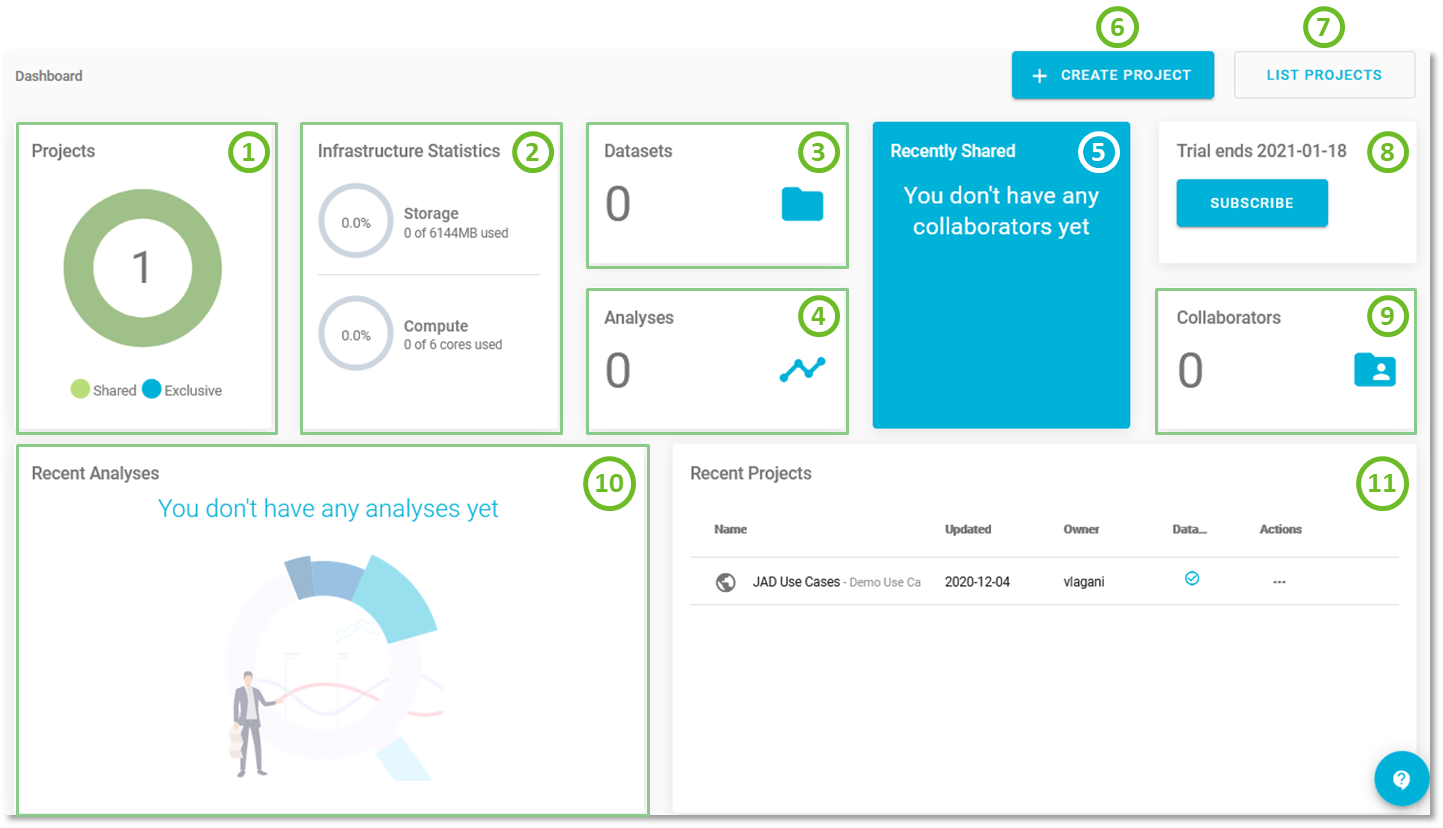
JADBio's Dashboard
Support/Feedback button
The Support/Feedback button enables you to request for support or give us feedback based on a set of predefined topics.
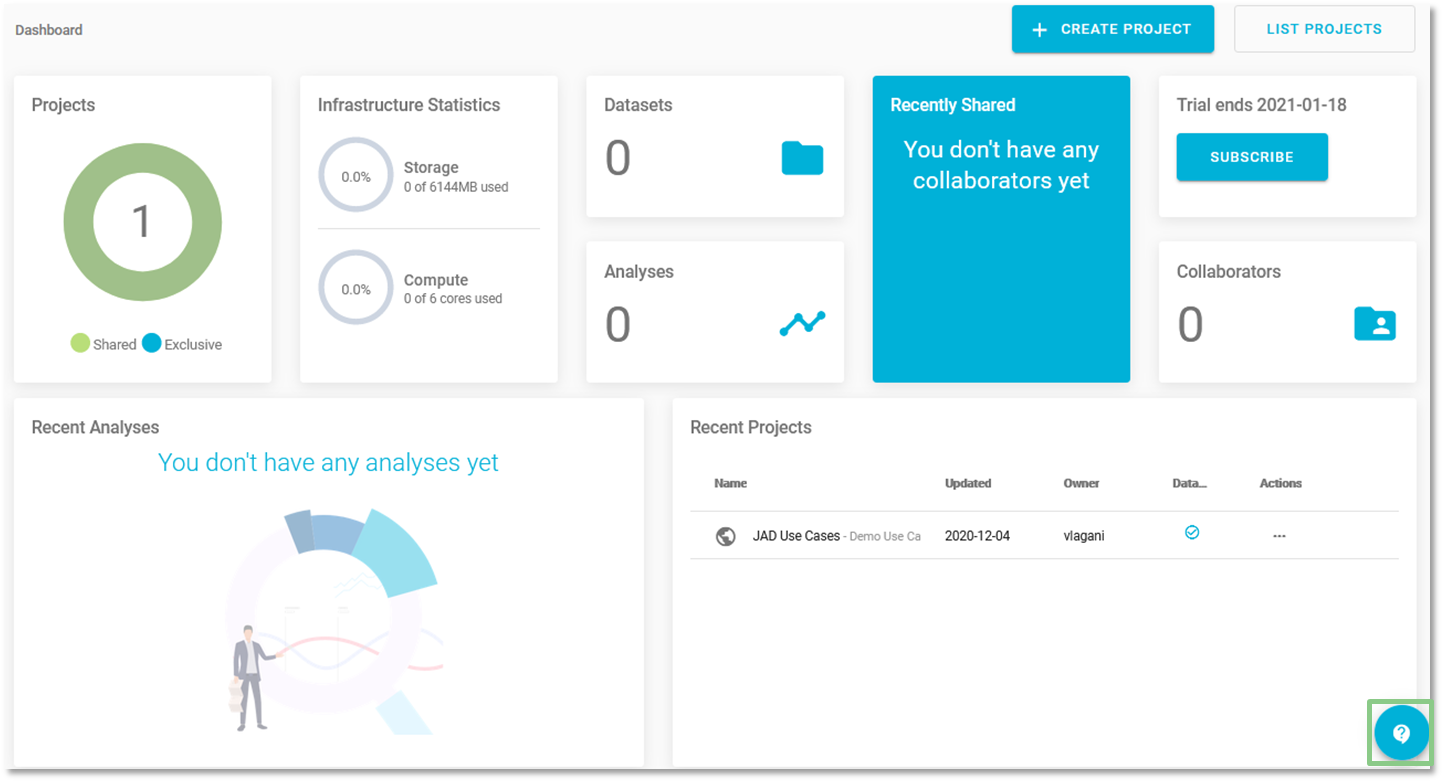
Dashboard - Support
- Click on the
and complete the form:
- Summary. Provide a summary of your question or suggestion.
- Request type. Select a request type from the pull-down items.
- Technical support.
- Statistical support.
- Licensing and billing questions.
- Product-trial questions.
- Other questions.
- Report a bug.
- Suggest a new feature.
- Suggest improvement.
- Message. Describe your question or suggestion as specifically as possible.
- Click 'Send' to send your request to JADBio's team.
- Check your email for a response from JADBio's team.
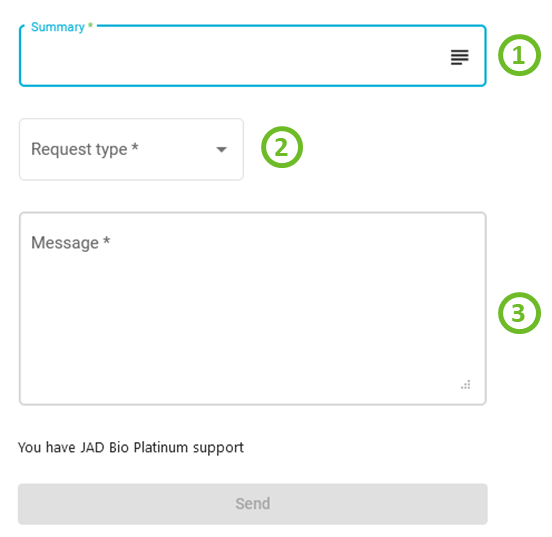
Support form
Shortly, you will receive a confirmation email from our Engineering team that we got your request and we are working on it.
Note of appreciation to JADBio users
We constantly make changes in the software and do our best to update these materials, but you may notice some differences. We welcome your feedback on how to make this more useful for you and requests for future tutorials.