Export & apply a model outside of JADBio
JADBio allows to download a standalone version of each model that can be applied on new data on a local machine.
This operation requires you to download the Model executor, currently named jadbio-1.1.150-model-exe.jar. This program will allow you to apply
any model created by JADBio on new data. This is the only executor you will need for all JADBio models you create and download.
The executor requires a Java SE Development Kit (JDK) to be installed. The JDK for your operating system (Windows, Linux, MacOS)
can be obtained from here.
Export a model
- Under Analyses, Click on 'Apply Model' in ACTIONS sidebar.
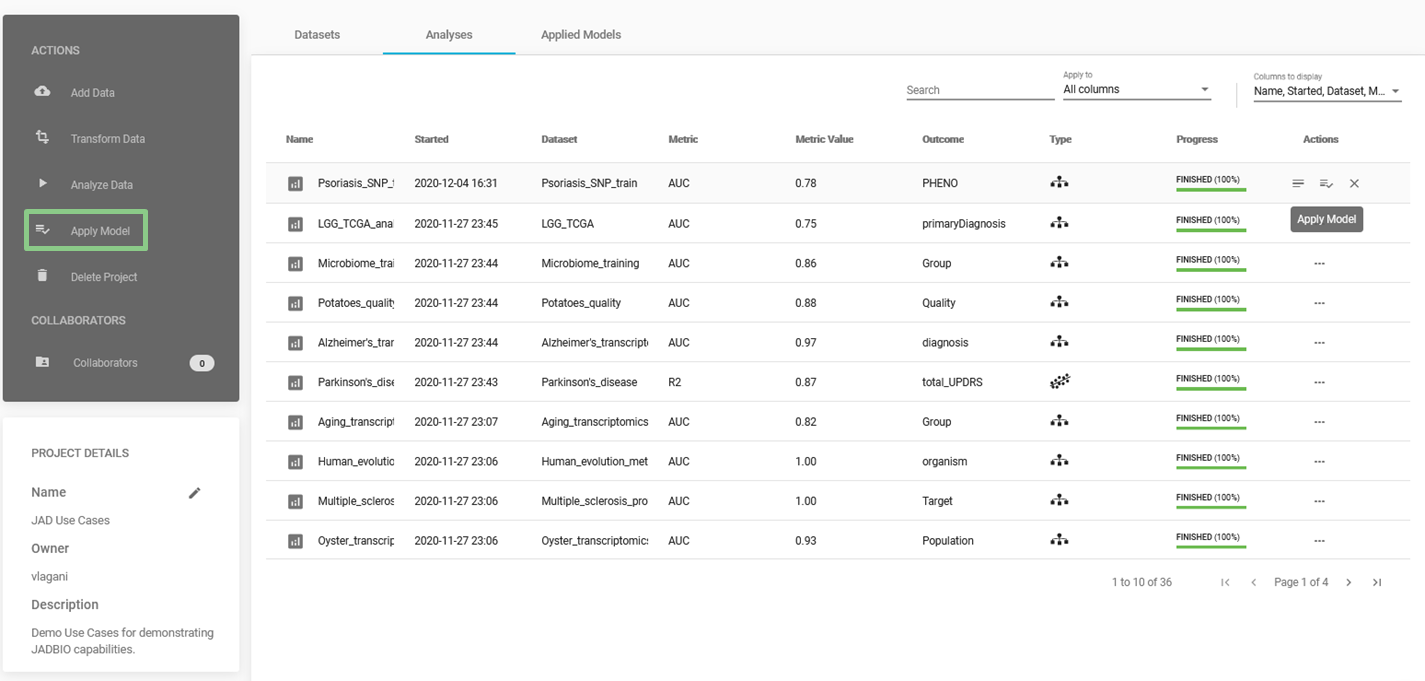
Apply Model
- Select analysis:
- Choose the analysis you want to use.
- Click 'NEXT'.
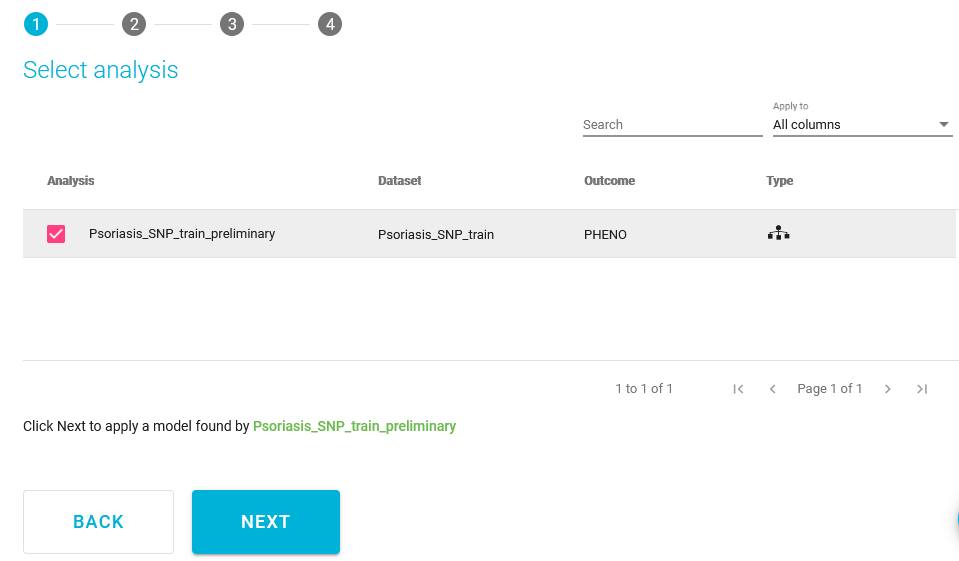
Select analysis
- Select model and signature:
- Select model: Choose the model you want to apply.
- Select signature: Place a check in the signature you want to validate.
- Click 'NEXT'.
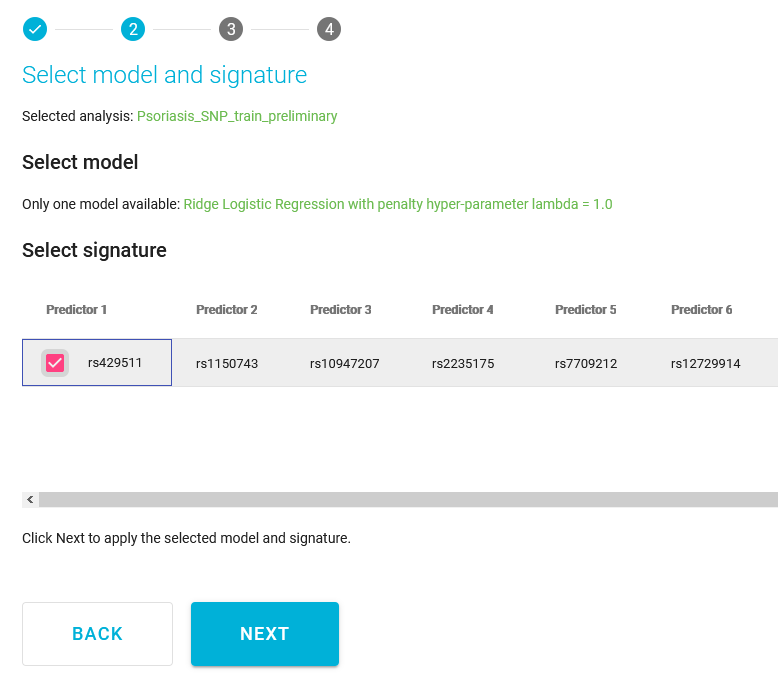
Select model & signature
- Select how to apply model:
- Select the option, 'Download model to make predictions off-line'.
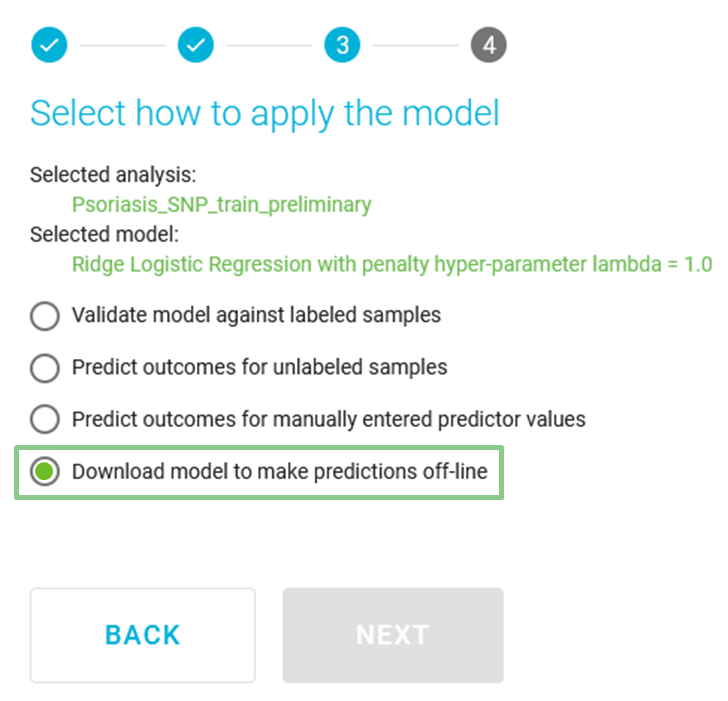
Select how to apply the model
-
Click 'NEXT'.
-
Select downloads:
- Click on 'DOWNLOAD MODEL EXECUTOR'. Store the model executor file (e.g.,
jadbio-1.1.150-model-exe.jar) in your preferred folder, in this example C:\Users\admin\Desktop\Demo_ModelExecutor. - Click 'DOWNLOAD MODEL'. Store the corresponding model file (e.g.,
jadbio-1.1.149-model-Alzheimers_training_ preliminary.bin) in the same folder as the model executor. - Click 'DONE' to return to the project’s page.
- Click on 'DOWNLOAD MODEL EXECUTOR'. Store the model executor file (e.g.,
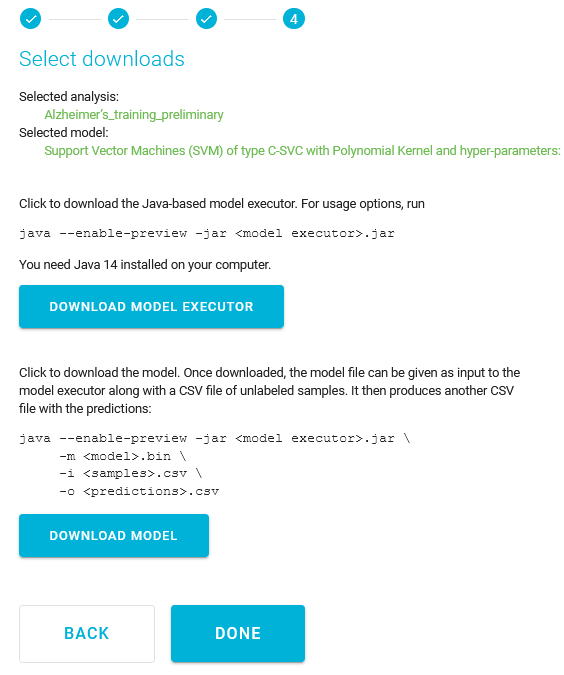
Select downloads
Apply model on new data
- Once the two files are in the same folder, open a terminal window and navigate to the folder hosting the two files.
To open a terminal in Windows, press the
Windows + Rkeys and then search forcmd. In MacOS, pressCommand + spacebarto launch Spotlight and typeTerminal.

Example of terminal in Windows
- To navigate to the folder containing the two files, use the command
cdfollowed by the complete path of the folder containing the Model Executor and the Model file. For example,cd C:\Users\admin\Desktop\Demo_ModelExecutor.

Navigating to the folder containing the model executor and the model file
-
Once reached the folder with the two files, you can explore the model contained in the model file by typing:
java --enable-preview -jar $model_executor.jar -n $model_file.binFor example,
java --enable-preview -jar jadbio-1.1.150-model-exe.jar -n jadbio-1.1.149-model-Alzheimers_training_Preliminary.bin.
This command will give an overview of the model, the biomarkers in the signature, and information regarding the analysis
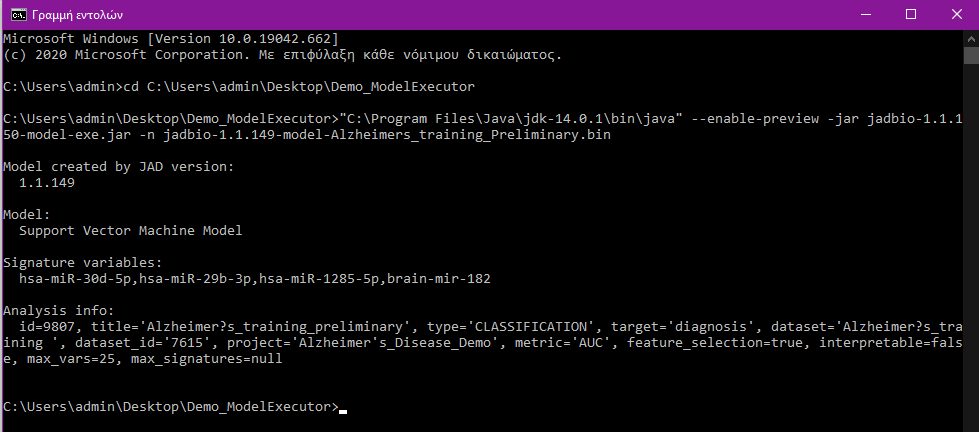
Exploring the model file
- Finally, you can use the model file for obtaining predictions regarding your own test data. Here, we simply use a subset (20 samples) of the original dataset, namely Alzheimer_test.csv. The test file must be a .csv file formatted as the original training set.
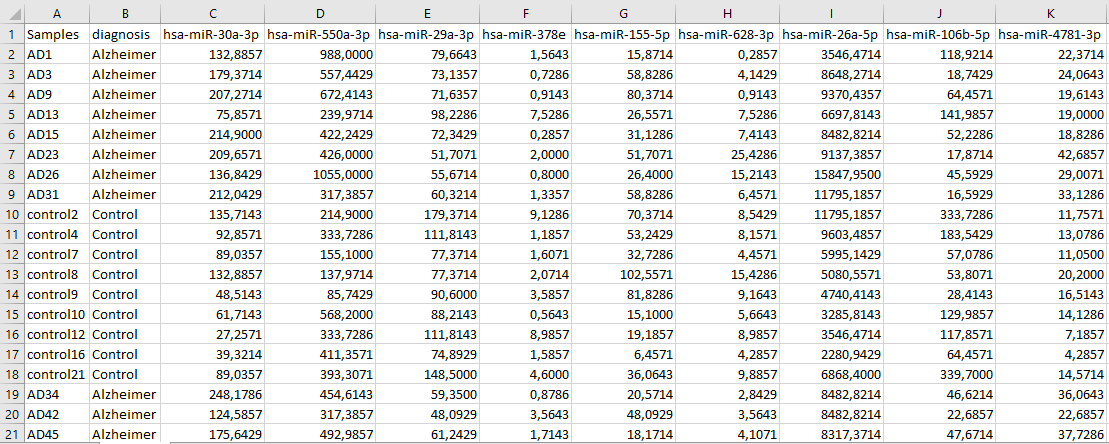
First 7 columns of the test file
-
In order to apply the model on the test file, type the following command in the terminal:
java --enable-preview -jar $model_executor.jar -m $model_file.bin -i $test_samples.csv -o $predictions.csvFor example,
java --enable-preview -jar jadbio-1.1.150-model-exe.jar -m jadbio-1.1.149-model-Alzheimers_Training_Preliminary.bin -i Alzheimer_test.csv -o Demo_dataset_test_results.csv.

Applying the model on new data
This will create a file named Demo_dataset_test_results.csv with the predictions for the 20 test samples.
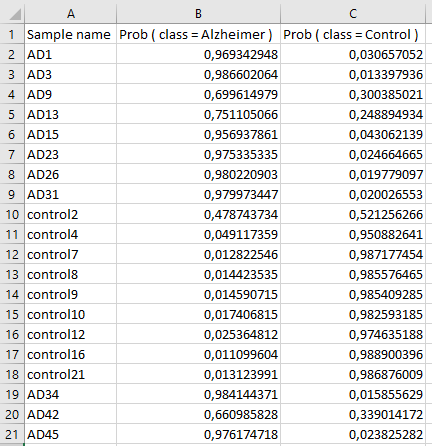
Predictions for the test samples as provided by the best performing model
Note of appreciation to JADBio users
We constantly make changes in the software and do our best to update these materials, but you may notice some differences. We welcome your feedback on how to make this more useful for you and requests for future tutorials.